[Windows + PyQt5] Fix top clipping of windows with system buttons and add dark mode support
Introduction
This article is a supplement to the previous article, fixing the top clipping issue when the window is maximized, and adding support for dark mode.
Fix top clipping when maximizing
In the previous article, we mentioned that when a window is maximized, the window manager pushes a region of size resizeBorderThickness outside the screen on all four sides to avoid resizing issues. Since we customised the top region and do not want those contents to be clipped, we cannot simply adjust the client area because modifying the top position of the client area while maximized would cause the system buttons to stop responding. After some exploration, I found a method that both prevents the top from being clipped and keeps the system buttons functional. This solution revolves around one window message and one structure:
The WM_GETMINMAXINFO message and the MINMAXINFO structure.
According to Microsoft documentation, the MINMAXINFO structure has the following signature:
typedef struct tagMINMAXINFO {
  POINT ptReserved;
  POINT ptMaxSize;
  POINT ptMaxPosition;
  POINT ptMinTrackSize;
  POINT ptMaxTrackSize;
} MINMAXINFO, *PMINMAXINFO, *LPMINMAXINFOWe only need to focus on two members: ptMaxSize and ptMaxPosition:
ptMaxSizecontrols the width and height when maximized;ptMaxPositioncontrols the window coordinates when maximized.
These values have default settings that applications can refer to, and those defaults come from the WM_GETMINMAXINFO message.
This message has the value 0x0024 and its parameters are as follows:
wParam
This parameter is not used.
lParam
A pointer to a
MINMAXINFOstructure that contains the default maximized position and dimensions, and the default minimum and maximum tracking sizes. An application can override the defaults by setting the members of this structure.
Retrieving this information is straightforward with ctypes, but the key is how to set these values.
In the previous article, we used the PyQt5-Frameless-Window library to avoid defining many structures and utility functions. This library also provides a very important function (for this article): getMonitorInfo, located in the qframelesswindow.utils.win32_utils module.
The implementation of getMonitorInfo is as follows[1]:
def getMonitorInfo(hWnd, dwFlags):
    """ get monitor info, return `None` if failed

    Parameters
    ----------
    hWnd: int or `sip.voidptr`
        window handle

    dwFlags: int
        Determines the return value if the window does not intersect any display monitor
    """
    monitor = win32api.MonitorFromWindow(hWnd, dwFlags)
    if not monitor:
        return

return win32api.GetMonitorInfo(monitor)As you can see, this function can retrieve display monitor information. According to the GetMonitorInfo documentation and the implementation of getMonitorInfo, we can achieve the desired effect with the following code:
from ctypes import Structure
from ctypes.wintypes import POINT, MSG
from qframelesswindow.utils import win32_utils
import win32con
# other imports...

class MINMAXINFO(Structure):
    _fields_ = [
        ("ptReserved", POINT),
        ("ptMaxSize", POINT),
        ("ptMaxPosition", POINT),
        ("ptMinTrackSize", POINT),
        ("ptMaxTrackSize", POINT),
] def nativeEvent(self, eventType, message):
msg = MSG.from_address(int(message))
if not msg.hWnd:
return super().nativeEvent(eventType, message)
# ......
return True, lRet.value
if msg.message == win32con.WM_GETMINMAXINFO:
mmi = MINMAXINFO.from_address(msg.lParam)
# Get the current monitor work area
info = win32_utils.getMonitorInfo(msg.hWnd, win32con.MONITOR_DEFAULTTONEAREST)
work = info['Work'] # (left, top, right, bottom)
mmi.ptMaxPosition.x = -self.thick
mmi.ptMaxPosition.y = 0
mmi.ptMaxSize.x = work[2] - work[0] + self.thick + 1
mmi.ptMaxSize.y = work[3] - work[1] - 1
return True, 0
elif msg.message == win32con.WM_NCHITTEST:
xPos, yPos = win32gui.ScreenToClient(msg.hWnd, win32api.GetCursorPos())
clientRect = win32gui.GetClientRect(msg.hWnd)
w = clientRect[2] - clientRect[0]
h = clientRect[3] - clientRect[1]
bw = self.thick
lx = xPos < bw
rx = xPos > w - bw
ty = yPos < bw
if not win32_utils.isMaximized(msg.hWnd):
if lx and ty:
return True, win32con.HTTOPLEFT
elif rx and ty:
return True, win32con.HTTOPRIGHT
elif ty:
return True, win32con.HTTOP
if hasattr(self, 'titleBar'):
tbh = self.titleBar.height()
tbw = self.titleBar.width()
tbx = self.titleBar.x()
tby = self.titleBar.y()
if tbx <= xPos <= tbx+tbw and 0 <= yPos <= tby+tbh:
if (hasattr(self.titleBar, 'iconLabel') and
self.childAt(xPos, yPos) == self.titleBar.iconLabel):
return True, win32con.HTSYSMENU
return True, win32con.HTCAPTION
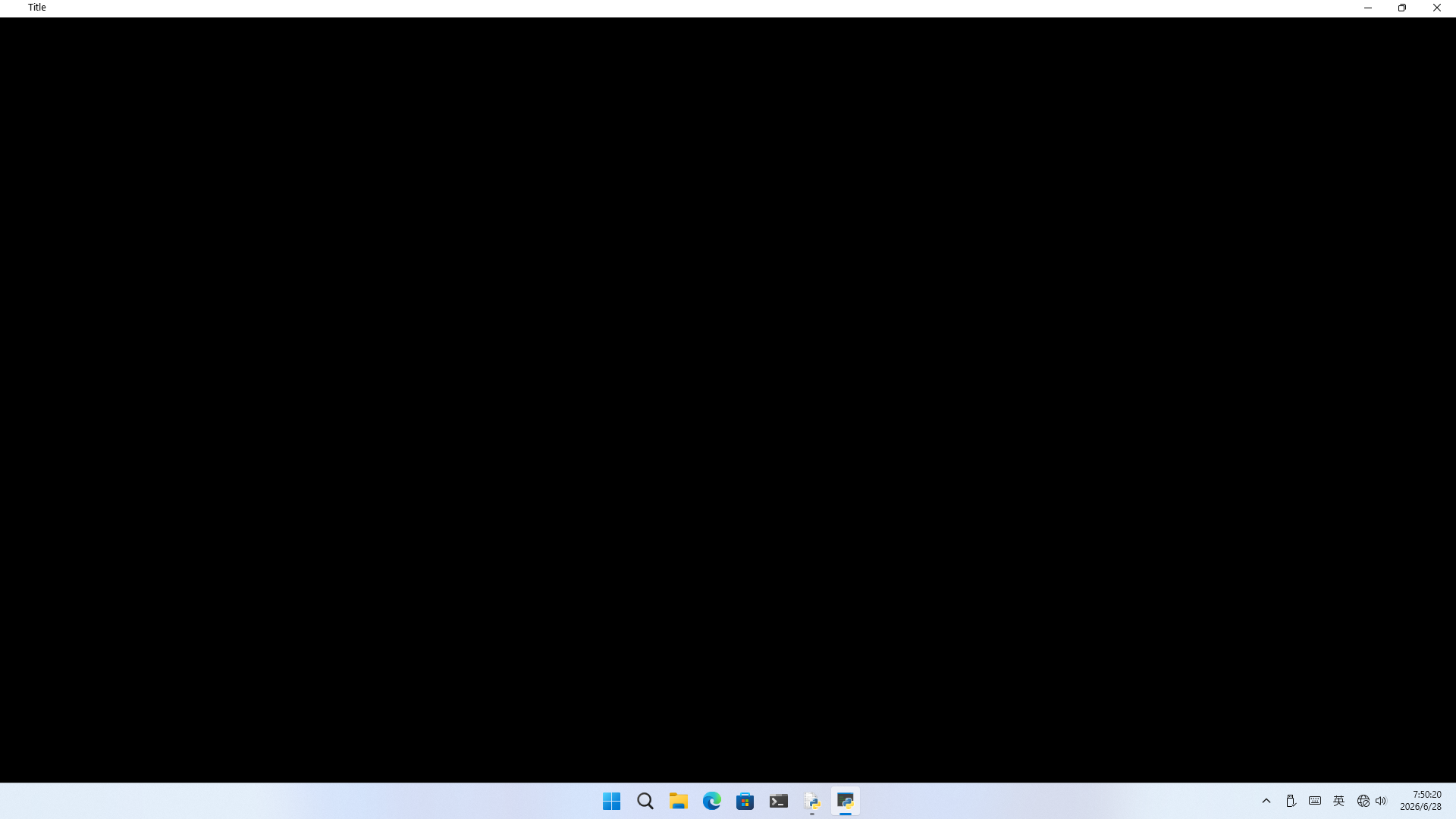
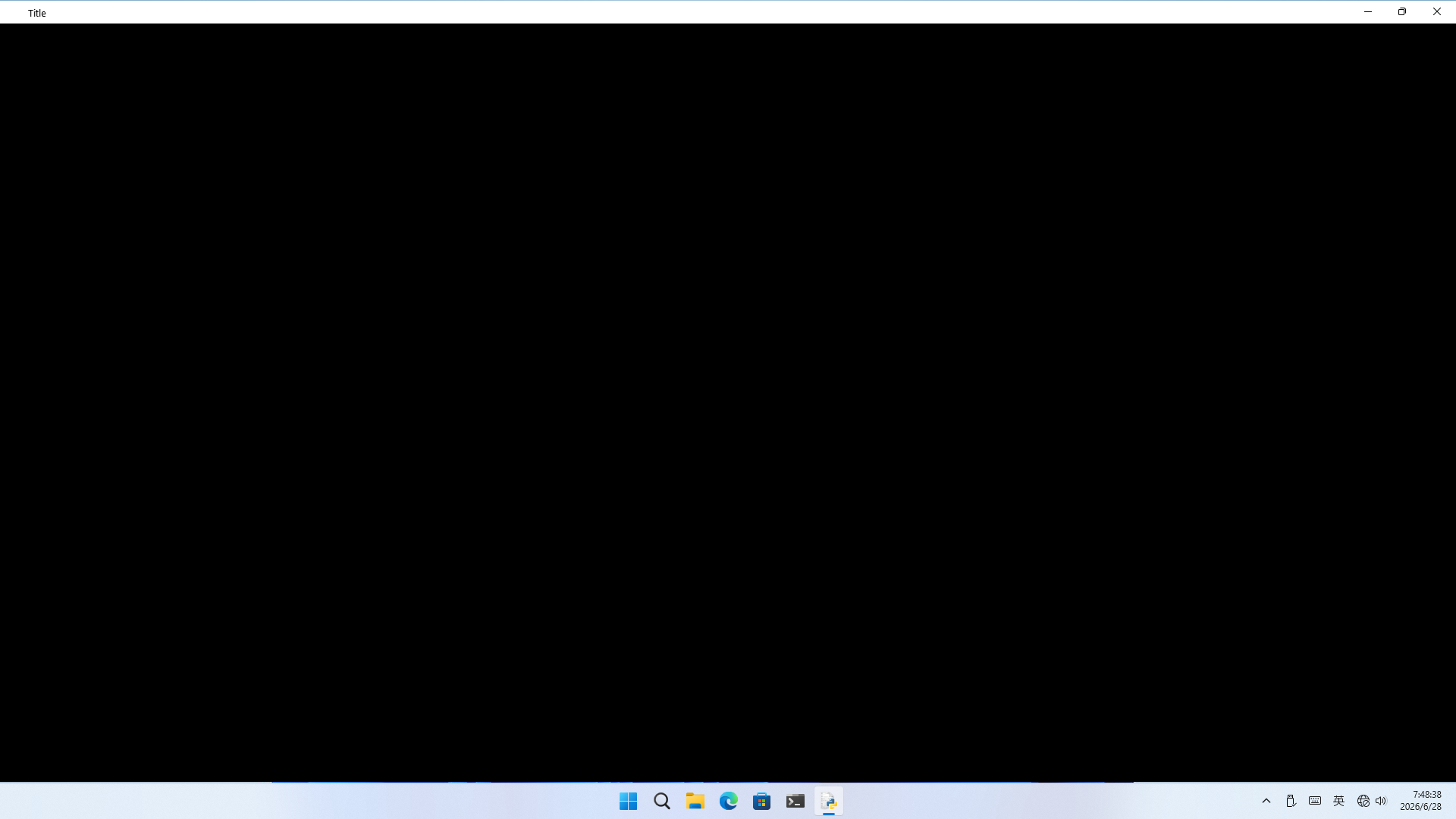
# ...... #Comparison of effects (click to enlarge if unclear):
| Before | After |
|---|---|
 |  |
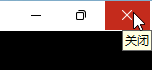
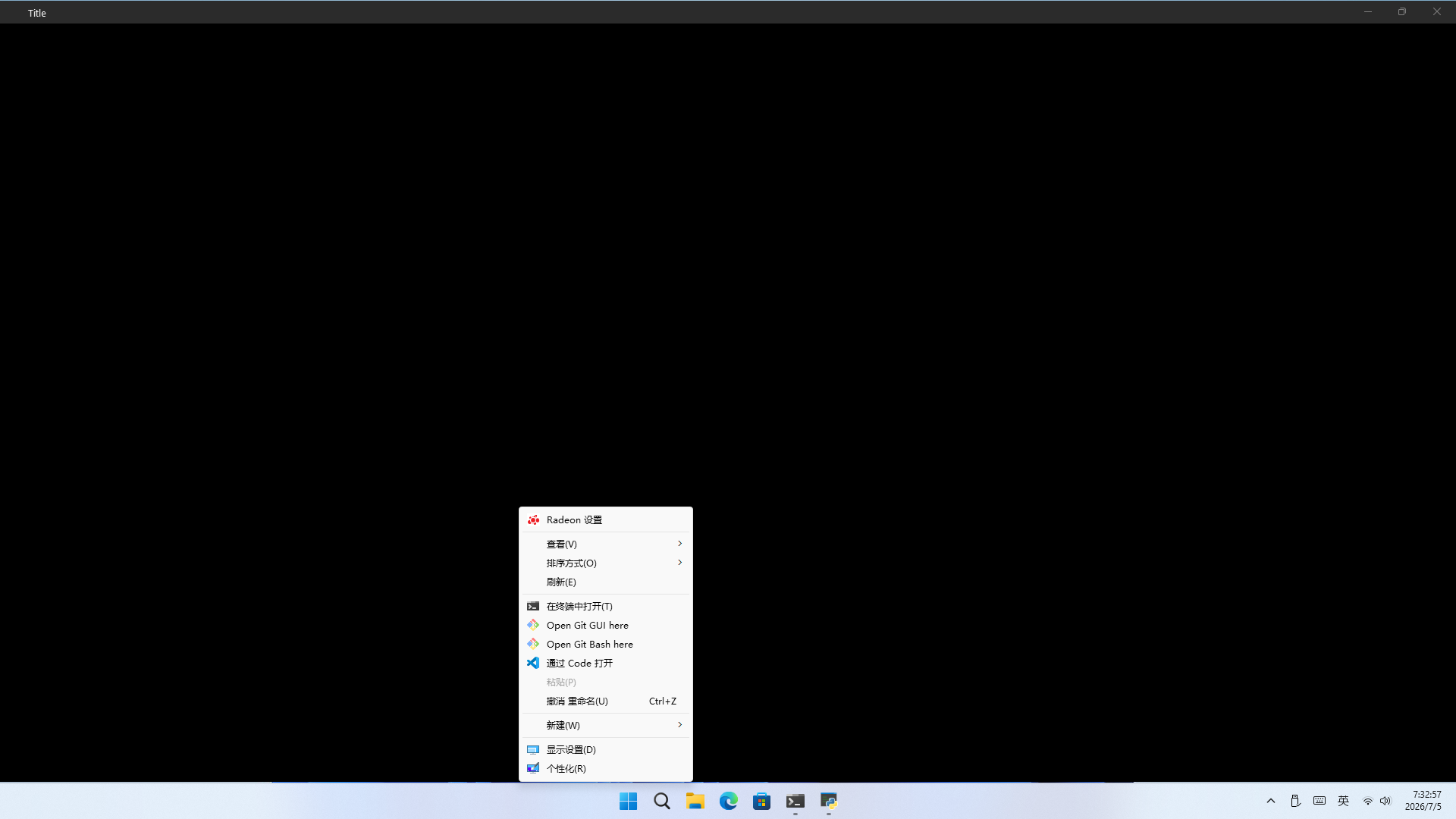
There is a subtle minor issue with this solution: to prevent the system from treating it as maximized, the code leaves a 1‑px gap at the top and bottom (don't worry, the top 1px cannot be clicked by the user, only visible), like this:
 |  |
|---|
🤓 But I personally think that an almost imperceptible 2px is worth trading for a noticeable 8px.
Add dark mode support
Starting from Windows 10 1903 (build 18362), Windows also supports dark mode, and many system applications have added dark mode support. Among them, the most notable is Windows Explorer (hereinafter referred to as Explorer). After all, it's a Win32 application! Since Explorer, a Win32 app, can use dark mode, why can't other Win32 apps do the same?
However, Microsoft did not provide a complete API documentation; they only provided a method to enable a dark mode title bar for Win32 applications. But what about other controls (such as the system menu)? Microsoft did not give a method. However, in community discussions[2][3], I discovered a way to enable the "full" dark mode.
SetPreferredAppMode is an undocumented Windows API function that is not exported by name. It is located in uxtheme.dll at ordinal 135, and is used to set the colour mode for windows created by the current process. It accepts an integer to enable or modify dark mode effects, with the following values:
enum PreferredAppMode
{
    Default,
    AllowDark,
    ForceDark,
    ForceLight,
    Max
};We mainly care about three values of
PreferredAppMode:AllowDark,ForceDark, andForceLight. They respectively mean follow system theme, force dark theme, and force light theme.[4]
Another important function is FlushMenuThemes, used to update menu styles after switching themes. It is also undocumented and not publicly exported, located in uxtheme.dll at ordinal 136.
So it's simple! We can directly subclass the WindowEffect class exported by qframelesswindow, and write helper functions as follows:
from qframelesswindow import WindowEffect
# ...... #

class WindowEffect(WindowEffect):
    def __init__(self, window):
        super().__init__(window)
        self.uxtheme = ctypes.WinDLL('uxtheme.dll')
        self.SetPreferredAppMode = self.uxtheme[135]
        self.SetPreferredAppMode.argtypes = [ctypes.c_int]
        self.SetPreferredAppMode.restype = ctypes.c_int

        self.FlushMenuThemes = self.uxtheme[136]

    def setDarkThemeEnabled(self, hWnd, isDarkTheme):
        # enable dark/light title bar
        self.DwmSetWindowAttribute(
            int(hWnd),
            20,  # DWMWA_USE_IMMERSIVE_DARK_MODE
            ctypes.byref(ctypes.c_int(isDarkTheme)),
            4  # sizeof(c_bool)
        )

        # enable dark/light win32 menus
        self.SetPreferredAppMode(2 if isDarkTheme else 3)
self.FlushMenuThemes()Then simply call it in the main function:
class Window(QWidget):
    def __init__(self, parent=None):
        super().__init__(parent=parent)
        self.windowEffect = WindowEffect(self)
        # ...... #

        if ...:
            self.windowEffect.setDarkThemeEnabled(self.winId(), True)
            # Don't forget to change the title text colour!
            self.titleBar.setStyleSheet('QLabel{color:white}')
# If you use qfluentwidgets, don't forget to setTheme as well!Effects:
| Active + System Menu | Inactive | |
|---|---|---|
| Windowed | 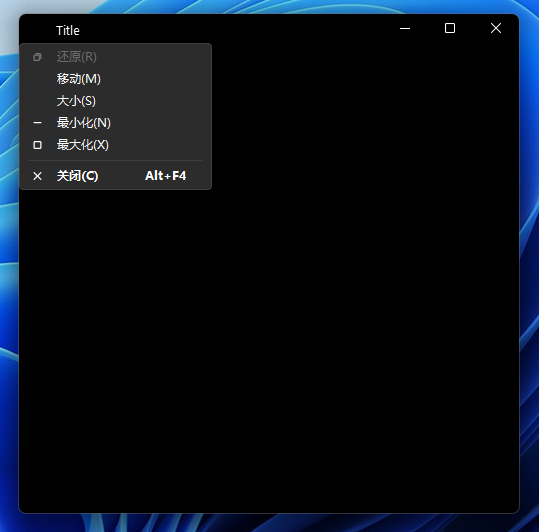 | 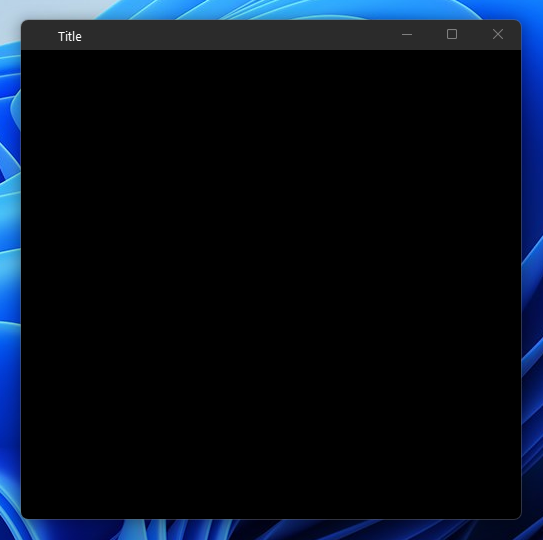 |
| Maximized | 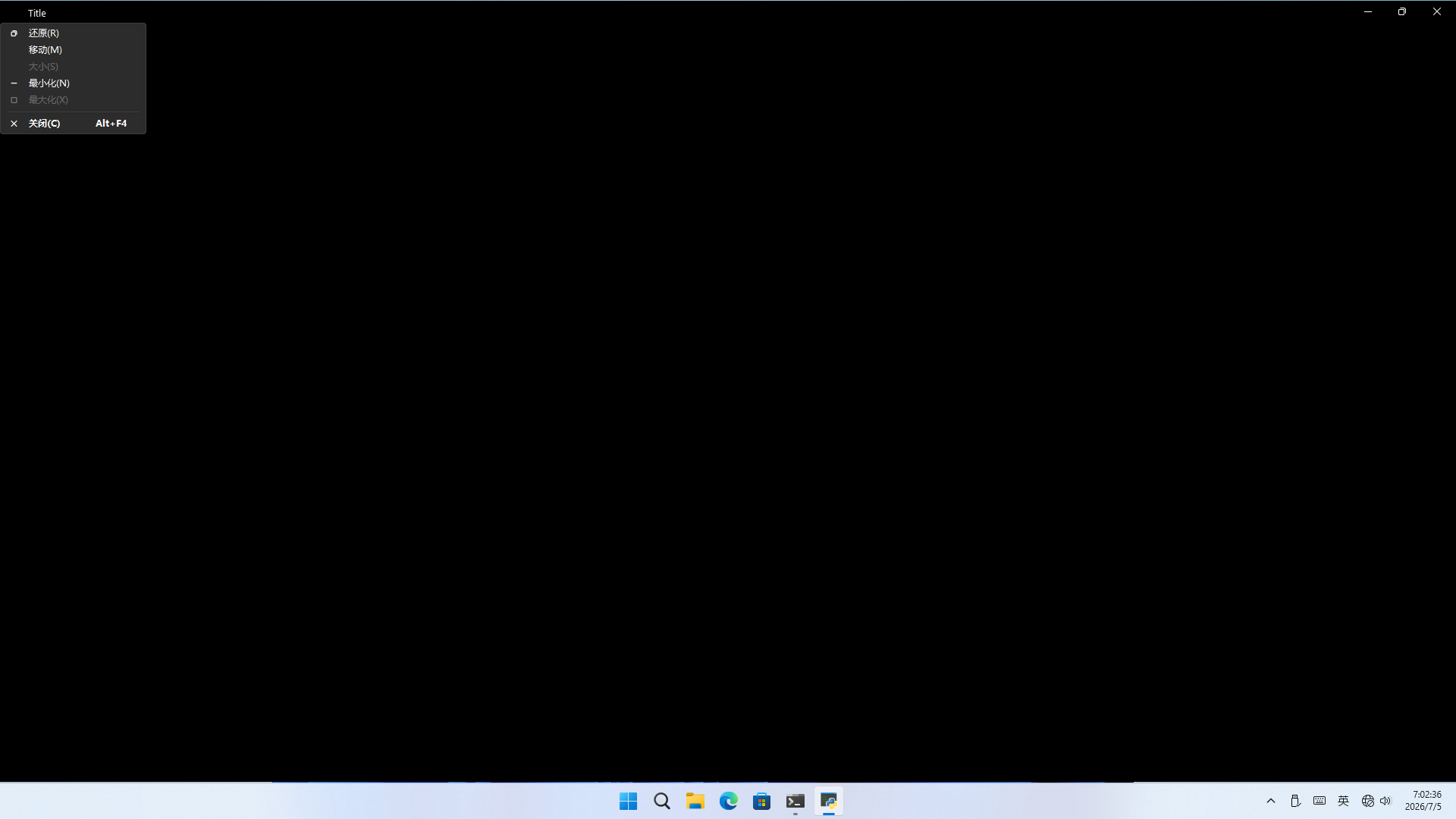 | 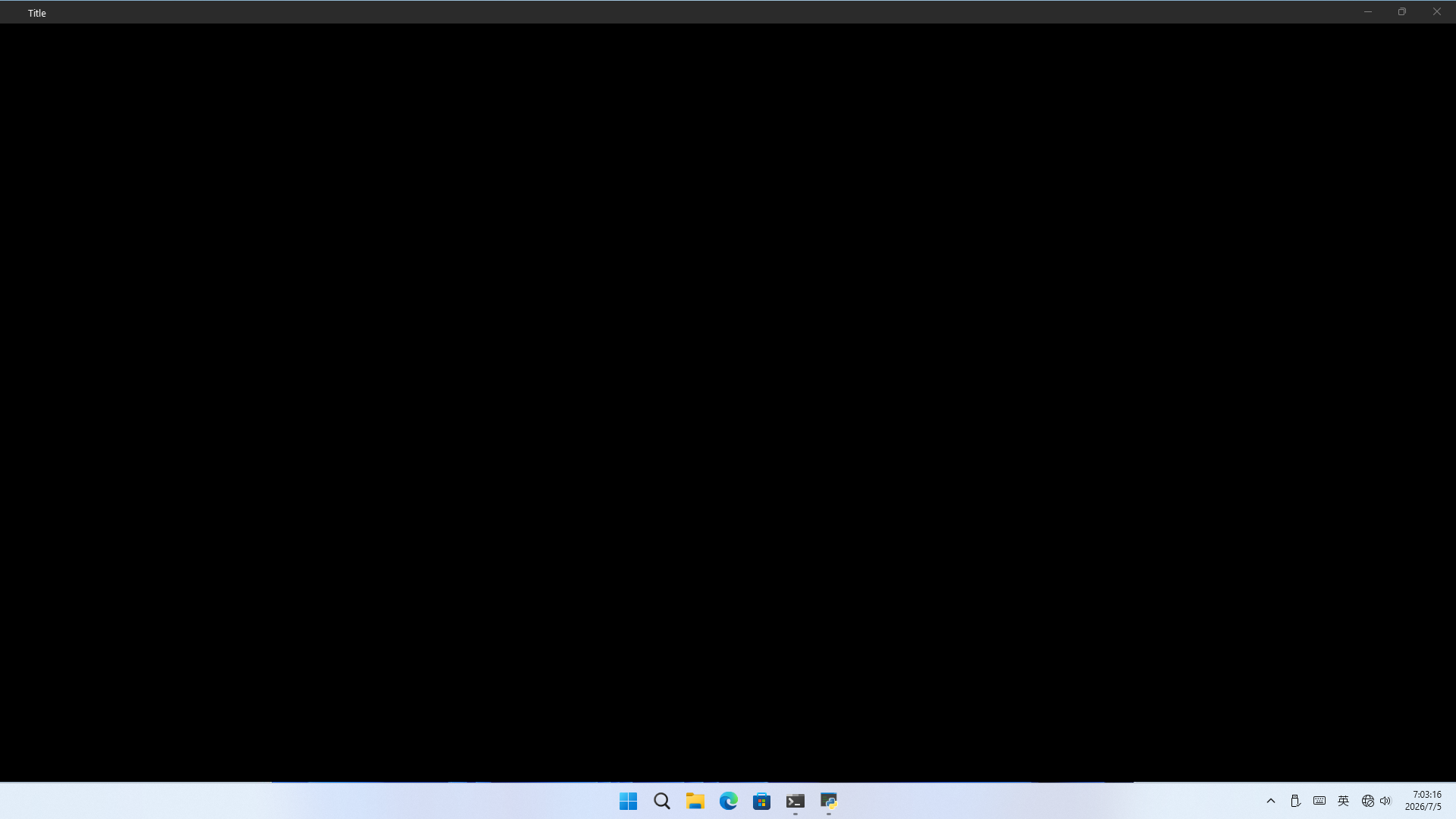 |
🤔 The 1px top gap seems a bit noticeable… Oh well, since the user has dark mode enabled, the desktop background must also be dark 🤓
The 1px bottom gap reveals the desktop menu
All code so far can be downloaded here.
--- The END ---
https://github.com/zhiyiYo/PyQt-Frameless-Window/blob/master/qframelesswindow/utils/win32_utils.py#L102-L117 ↩︎
windows - Win10 dark theme - how to use in WINAPI? - Stack Overflow ↩︎
How to set titlebar context menu to dark theme? · microsoft/WindowsAppSDK · Discussion #2967 ↩︎
Adding dark theme support to native menus in WinUI 3 title bar (Chinese) | Kiyan's Blog ↩︎